Quick Reference for AI Agents & Developers
// Show conversations with navigation to messages
CometChatConversations(
  showBackButton: true,
  onItemTap: (conversation) {
    final target = conversation.conversationWith;
    Navigator.push(
      context,
      MaterialPageRoute(
        builder: (_) => MessagesScreen(
          user: target is User ? target : null,
          group: target is Group ? target : null,
        ),
      ),
    );
  },
)

// Messages screen with header, list, and composer
Scaffold(
  appBar: CometChatMessageHeader(user: user, group: group),
  body: Column(
    children: [
      Expanded(child: CometChatMessageList(user: user, group: group)),
      CometChatMessageComposer(user: user, group: group),
    ],
  ),
)
Key Components:
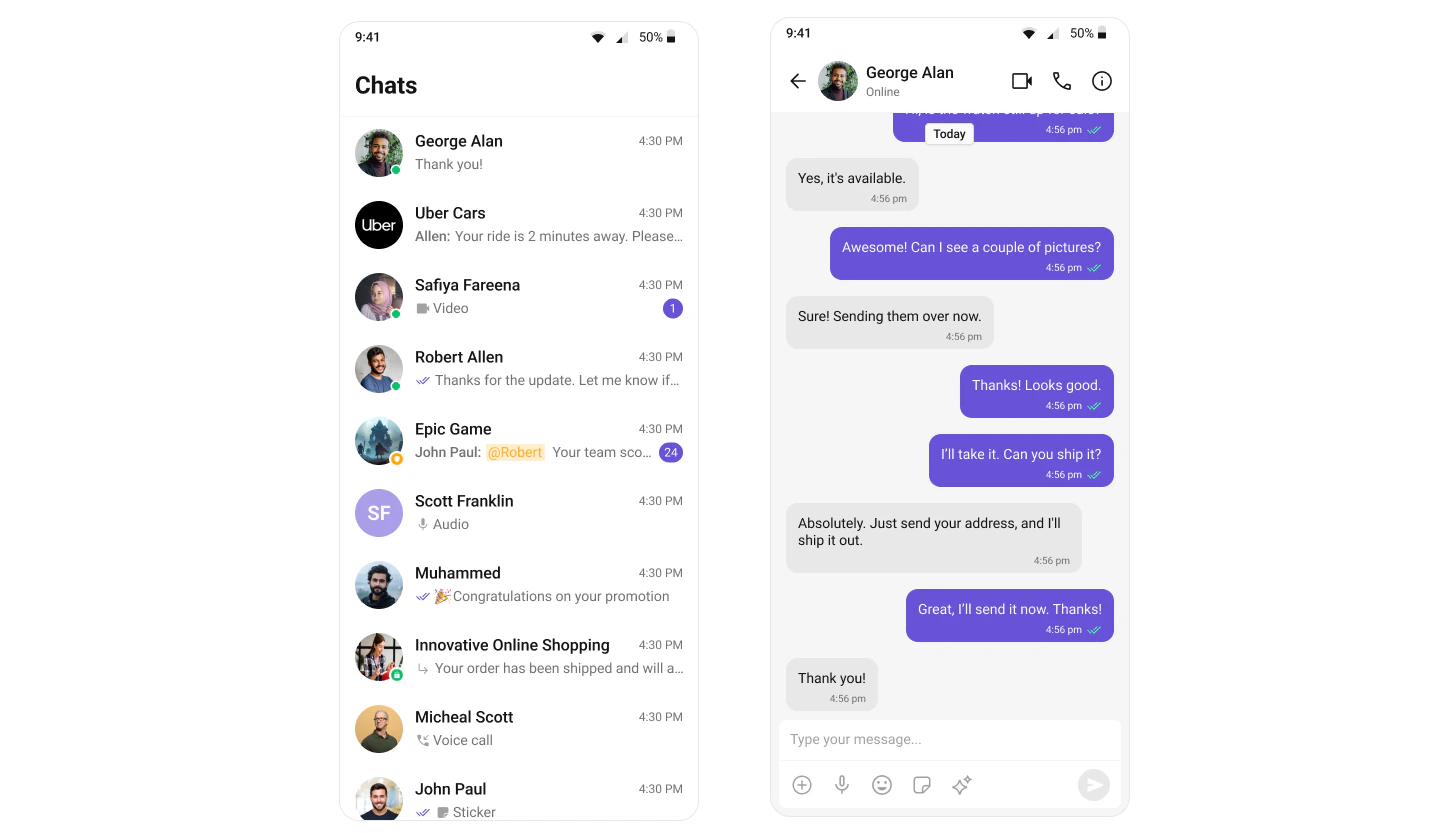
The Conversation List + Message View layout provides a seamless two-panel chat interface, commonly seen in modern messaging apps like WhatsApp Web, Slack, and Microsoft Teams. This layout allows users to switch between conversations while keeping the active chat open, delivering a smooth, real-time messaging experience.

How It Works

This implementation uses Flutter’s navigation system to create a mobile-friendly chat experience:
  1. Conversation List Screen – Displays all recent conversations using CometChatConversations
  2. Navigation – Tapping a conversation pushes the message screen onto the navigation stack
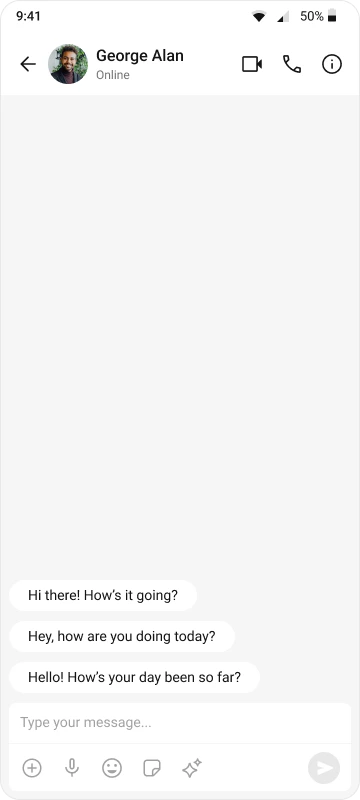
  3. Message Screen – Shows the full chat interface with header, message list, and composer
  4. Back Navigation – Users can return to the conversation list using the back button

Implementation

Step 1: Render the Conversation Component

The CometChatConversations widget displays all conversations related to the currently logged-in user. Follow the steps below to render this component:
main.dart
@override
Widget build(BuildContext context) {
  return Scaffold(
    body: SafeArea(
      child: CometChatConversations(
        showBackButton: true,
        onItemTap: (conversation) {
          final target = conversation.conversationWith;

          Navigator.push(
            context,
            MaterialPageRoute(
              builder: (_) => MessagesScreen(
                user: target is User ? target : null,
                group: target is Group ? target : null,
              ),
            ),
          );
        },
      ),
    ),
  );
}
Key Properties:
PropertyTypeDescription
showBackButtonboolShows/hides the back button in the app bar
onItemTapFunctionCallback when a conversation is tapped
conversationWithUser or GroupThe target entity (user or group) for the conversation

Full Example: main.dart

main.dart
import 'package:flutter/material.dart';
import 'package:cometchat_chat_uikit/cometchat_chat_uikit.dart';
import 'package:cometchat_calls_uikit/cometchat_calls_uikit.dart';  // Optional: Include if you're using Audio/Video Calling
import 'messages_screen.dart';
import 'cometchat_config.dart';

void main() => runApp(const MyApp());

class MyApp extends StatelessWidget {
  const MyApp({super.key});

  @override
  Widget build(BuildContext context) {
    return MaterialApp(
      title: 'CometChat UI Kit',
      theme: ThemeData(
        colorScheme: ColorScheme.fromSeed(seedColor: Colors.deepPurple),
        useMaterial3: true,
      ),
      home: const Home(),
    );
  }
}

class Home extends StatelessWidget {
  const Home({super.key});

  Future<void> _initializeAndLogin() async {
    final settings = UIKitSettingsBuilder()
      ..subscriptionType = CometChatSubscriptionType.allUsers
      ..autoEstablishSocketConnection = true
      ..appId = CometChatConfig.appId
      ..region = CometChatConfig.region
      ..authKey = CometChatConfig.authKey
      ..extensions = CometChatUIKitChatExtensions.getDefaultExtensions()  // Replace with empty array to disable extensions
      ..callingExtension = CometChatCallingExtension();  // Optional: Include if you're using Audio/Video Calling

    await CometChatUIKit.init(uiKitSettings: settings.build());
    await CometChatUIKit.login(
      'cometchat-uid-1',
      onSuccess: (_) => debugPrint('✅ Login Successful'),
      onError: (err) => throw Exception('Login Failed: $err'),
    );
  }

  @override
  Widget build(BuildContext context) {
    return FutureBuilder<void>(
      future: _initializeAndLogin(),
      builder: (ctx, snap) {
        if (snap.connectionState != ConnectionState.done) {
          return const Scaffold(
            body: SafeArea(
              child: Center(child: CircularProgressIndicator()),
            ),
          );
        }
        if (snap.hasError) {
          return Scaffold(
            body: SafeArea(
              child: Center(
                child: Text(
                  'Error starting app:\n${snap.error}',
                  textAlign: TextAlign.center,
                ),
              ),
            ),
          );
        }
        return const ConversationsPage();
      },
    );
  }
}

class ConversationsPage extends StatelessWidget {
  const ConversationsPage({super.key});

  @override
  Widget build(BuildContext context) {
    return Scaffold(
      body: SafeArea(
        child: CometChatConversations(
          showBackButton: true,
          onItemTap: (conversation) {
            final target = conversation.conversationWith;

            Navigator.push(
              context,
              MaterialPageRoute(
                builder: (_) => MessagesScreen(
                  user: target is User ? target : null,
                  group: target is Group ? target : null,
                ),
              ),
            );
          },
        ),
      ),
    );
  }
}

Step 2: Render the Messages Component

To create a complete messaging view, include the following components in messages_screen.dart:
messages_screen.dart
import 'package:flutter/material.dart';
import 'package:cometchat_chat_uikit/cometchat_chat_uikit.dart';

class MessagesScreen extends StatefulWidget {
  final User? user;
  final Group? group;

  const MessagesScreen({Key? key, this.user, this.group}) : super(key: key);

  @override
  State<MessagesScreen> createState() => _MessagesScreenState();
}

class _MessagesScreenState extends State<MessagesScreen> {
  @override
  Widget build(BuildContext context) {
    return Scaffold(
      appBar: CometChatMessageHeader(
        user: widget.user,
        group: widget.group,
      ),
      body: SafeArea(
        child: Column(
          children: [
            Expanded(
              child: CometChatMessageList(
                user: widget.user,
                group: widget.group,
              ),
            ),
            CometChatMessageComposer(
              user: widget.user,
              group: widget.group,
            ),
          ],
        ),
      ),
    );
  }
}
Component Breakdown:
ComponentPurposeKey Features
CometChatMessageHeaderShows conversation title, avatar, and actionsUser/group info, back button, call buttons
CometChatMessageListDisplays messages in chronological orderReal-time updates, reactions, replies
CometChatMessageComposerInput field for composing messagesText, media, attachments, emojis

Step 3: Run the App

Use the following command to run the app on a connected device or emulator:
flutter run
This will launch the app and display the Conversation List. Tapping a conversation will navigate to the Message View.

Customization Options

Conversation List Customization

CometChatConversations(
  title: "My Chats",
  showBackButton: false,
  hideSearch: false,
  onItemTap: (conversation) {
    // Custom navigation logic
  },
  onItemLongPress: (conversation) {
    // Show options menu
  },
  conversationsStyle: ConversationsStyle(
    background: Colors.white,
    titleStyle: TextStyle(fontSize: 20, fontWeight: FontWeight.bold),
  ),
)

Message Screen Customization

CometChatMessageList(
  user: user,
  group: group,
  hideMessageComposer: false,
  hideMessageHeader: false,
  messageListStyle: MessageListStyle(
    background: Colors.grey[100],
  ),
)
For complete customization options, see:

Common Use Cases

CometChatConversations(
  conversationsRequestBuilder: ConversationsRequestBuilder()
    ..conversationType = CometChatConversationType.user  // or .group
    ..limit = 30,
)
CometChatConversations(
  onItemLongPress: (conversation) {
    showDialog(
      context: context,
      builder: (context) => AlertDialog(
        title: Text('Options'),
        content: Column(
          mainAxisSize: MainAxisSize.min,
          children: [
            ListTile(
              title: Text('Delete Conversation'),
              onTap: () {
                // Delete conversation logic
              },
            ),
          ],
        ),
      ),
    );
  },
)

Next Steps

Customize Conversations

Learn about all conversation list customization options

Message Components

Explore message list, header, and composer features

Theming Guide

Customize colors, fonts, and styles to match your brand

Events & Listeners

Handle real-time events and user interactions