Quick Reference for AI Agents & Developers
// Tab-based UI with bottom navigation
Scaffold(
  body: PageView(
    controller: _pageController,
    children: [
      CometChatConversations(),
      CometChatCallLogs(),
      CometChatUsers(),
      CometChatGroups(),
    ],
  ),
  bottomNavigationBar: BottomNavigationBar(
    currentIndex: _selectedIndex,
    onTap: (index) {
      setState(() => _selectedIndex = index);
      _pageController.jumpToPage(index);
    },
    items: [
      BottomNavigationBarItem(icon: Icon(Icons.chat), label: "Chat"),
      BottomNavigationBarItem(icon: Icon(Icons.call), label: "Calls"),
      BottomNavigationBarItem(icon: Icon(Icons.person), label: "Users"),
      BottomNavigationBarItem(icon: Icon(Icons.group), label: "Groups"),
    ],
  ),
)
Key Components:
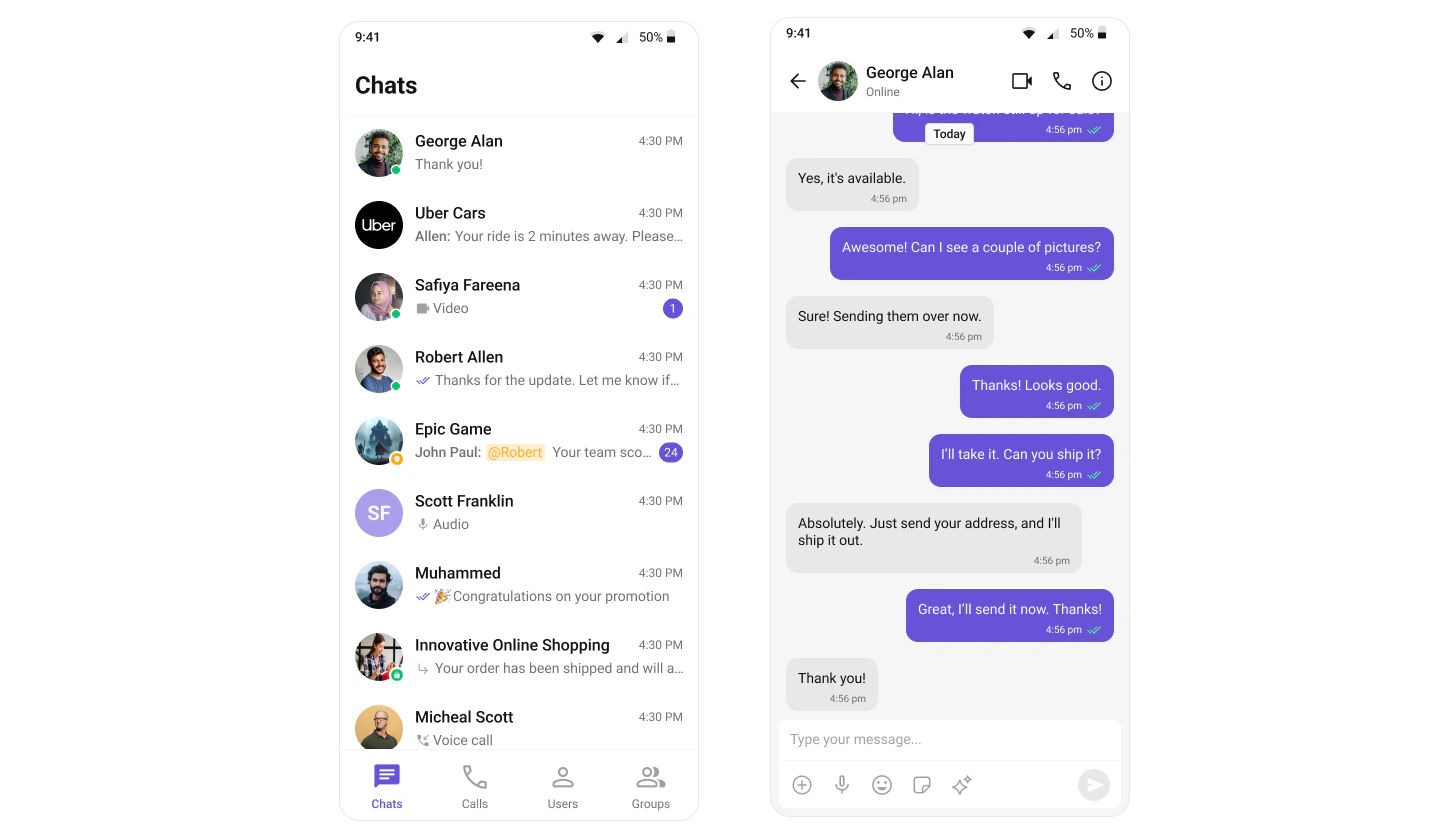
This guide walks you through creating a tab-based messaging UI using Flutter and CometChat UIKit. The UI will include different sections for Chats, Calls, Users, and Groups, allowing seamless navigation.

User Interface Preview

This layout consists of:
  1. Bottom Navigation Bar – Tabs for switching between Chats, Calls, Users, and Groups
  2. Page View – Displays the selected tab’s content
  3. Conversation List – Shows recent conversations with active users and groups
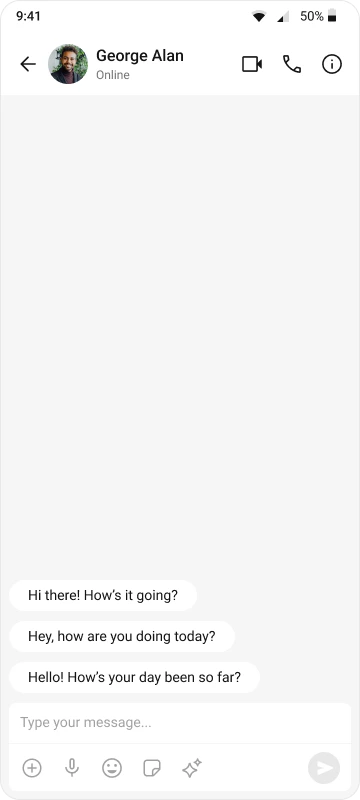
  4. Message View – Opens when a conversation is tapped

How It Works

This implementation uses Flutter’s BottomNavigationBar and PageView to create a tabbed interface:
  1. Bottom Navigation – Provides quick access to different sections
  2. Page View – Swipeable pages for each tab
  3. State Management – Syncs selected tab with page view
  4. Navigation – Tapping a conversation opens the message screen

Use Cases

  • All-in-One Chat Apps – Complete messaging solution with multiple features
  • Business Messengers – Professional communication with organized sections
  • Social Platforms – Community chat with user discovery
  • Support Apps – Help desk with call logs and user management
  • Team Collaboration – Internal communication with group management

Implementation

Step 1: Render the Tab Component

The tab-based UI uses BottomNavigationBar for navigation and PageView for content display:
main.dart
@override
Widget build(BuildContext context) {
  return Scaffold(
    body: PageView(
      controller: _pageController,
      onPageChanged: (index) {
        setState(() {
          _selectedIndex = index;
        });
      },
      children: [
        CometChatConversations(
          showBackButton: false,
          onItemTap: (conversation) {
            Navigator.push(
              context,
              MaterialPageRoute(
                builder: (context) => MessagesScreen(
                  user: conversation.conversationWith is User
                      ? conversation.conversationWith as User
                      : null,
                  group: conversation.conversationWith is Group
                      ? conversation.conversationWith as Group
                      : null,
                ),
              ),
            );
          },
        ),
        CometChatCallLogs(),
        CometChatUsers(),
        CometChatGroups(),
      ],
    ),
    bottomNavigationBar: BottomNavigationBar(
      currentIndex: _selectedIndex,
      onTap: _onItemTapped,
      items: const [
        BottomNavigationBarItem(
          icon: Icon(Icons.chat),
          label: "Chat",
        ),
        BottomNavigationBarItem(
          icon: Icon(Icons.call),
          label: "Calls",
        ),
        BottomNavigationBarItem(
          icon: Icon(Icons.person),
          label: "Users",
        ),
        BottomNavigationBarItem(
          icon: Icon(Icons.group),
          label: "Groups",
        ),
      ],
    ),
  );
}
Key Components:
ComponentPurposeKey Features
PageViewContainer for swipeable pagesSmooth transitions, gesture support
BottomNavigationBarTab navigationIcon + label, active state
PageControllerControls page viewJump to page, animate transitions

Full Example: main.dart

main.dart
import 'package:flutter/material.dart';
import 'package:cometchat_chat_uikit/cometchat_chat_uikit.dart';
import 'package:cometchat_calls_uikit/cometchat_calls_uikit.dart';  // Optional: Include if you're using Audio/Video Calling
import 'messages_screen.dart';
import 'cometchat_config.dart';

void main() => runApp(const MyApp());

class MyApp extends StatelessWidget {
  const MyApp({super.key});

  @override
  Widget build(BuildContext context) {
    return MaterialApp(
      title: 'CometChat UI Kit',
      theme: ThemeData(
        colorScheme: ColorScheme.fromSeed(seedColor: Colors.deepPurple),
        useMaterial3: true,
      ),
      home: const Home(),
    );
  }
}

class Home extends StatelessWidget {
  const Home({super.key});

  Future<void> _initializeAndLogin() async {
    final settings = UIKitSettingsBuilder()
      ..subscriptionType = CometChatSubscriptionType.allUsers
      ..autoEstablishSocketConnection = true
      ..appId = CometChatConfig.appId
      ..region = CometChatConfig.region
      ..authKey = CometChatConfig.authKey
      ..extensions = CometChatUIKitChatExtensions.getDefaultExtensions()  // Replace with empty array to disable extensions
      ..callingExtension = CometChatCallingExtension();  // Optional: Include if you're using Audio/Video Calling

    await CometChatUIKit.init(uiKitSettings: settings.build());
    await CometChatUIKit.login(
      'cometchat-uid-1',
      onSuccess: (_) => debugPrint('✅ Login Successful'),
      onError: (err) => throw Exception('Login Failed: $err'),
    );
  }

  @override
  Widget build(BuildContext context) {
    return FutureBuilder<void>(
      future: _initializeAndLogin(),
      builder: (ctx, snap) {
        if (snap.connectionState != ConnectionState.done) {
          return const Scaffold(
            body: SafeArea(
              child: Center(child: CircularProgressIndicator()),
            ),
          );
        }
        if (snap.hasError) {
          return Scaffold(
            body: SafeArea(
              child: Center(
                child: Text(
                  'Error starting app:\n${snap.error}',
                  textAlign: TextAlign.center,
                ),
              ),
            ),
          );
        }
        return const TabsScreen();
      },
    );
  }
}

class TabsScreen extends StatefulWidget {
  const TabsScreen({super.key});

  @override
  State<TabsScreen> createState() => _TabsScreenState();
}

class _TabsScreenState extends State<TabsScreen> {
  int _selectedIndex = 0;
  final PageController _pageController = PageController();

  void _onItemTapped(int index) {
    setState(() {
      _selectedIndex = index;
    });
    _pageController.jumpToPage(index);
  }

  @override
  void dispose() {
    _pageController.dispose();
    super.dispose();
  }

  @override
  Widget build(BuildContext context) {
    return Scaffold(
      body: PageView(
        controller: _pageController,
        onPageChanged: (index) {
          setState(() {
            _selectedIndex = index;
          });
        },
        children: [
          CometChatConversations(
            showBackButton: false,
            onItemTap: (conversation) {
              Navigator.push(
                context,
                MaterialPageRoute(
                  builder: (context) => MessagesScreen(
                    user: conversation.conversationWith is User
                        ? conversation.conversationWith as User
                        : null,
                    group: conversation.conversationWith is Group
                        ? conversation.conversationWith as Group
                        : null,
                  ),
                ),
              );
            },
          ),
          CometChatCallLogs(),
          CometChatUsers(
            onItemTap: (user) {
              Navigator.push(
                context,
                MaterialPageRoute(
                  builder: (context) => MessagesScreen(user: user),
                ),
              );
            },
          ),
          CometChatGroups(
            onItemTap: (group) {
              Navigator.push(
                context,
                MaterialPageRoute(
                  builder: (context) => MessagesScreen(group: group),
                ),
              );
            },
          ),
        ],
      ),
      bottomNavigationBar: BottomNavigationBar(
        type: BottomNavigationBarType.fixed,
        currentIndex: _selectedIndex,
        onTap: _onItemTapped,
        selectedItemColor: Colors.deepPurple,
        unselectedItemColor: Colors.grey,
        items: const [
          BottomNavigationBarItem(
            icon: Icon(Icons.chat),
            label: "Chat",
          ),
          BottomNavigationBarItem(
            icon: Icon(Icons.call),
            label: "Calls",
          ),
          BottomNavigationBarItem(
            icon: Icon(Icons.person),
            label: "Users",
          ),
          BottomNavigationBarItem(
            icon: Icon(Icons.group),
            label: "Groups",
          ),
        ],
      ),
    );
  }
}

Step 2: Render the Messages Component

To create a complete messaging view, include the following components in messages_screen.dart:
messages_screen.dart
import 'package:flutter/material.dart';
import 'package:cometchat_chat_uikit/cometchat_chat_uikit.dart';

class MessagesScreen extends StatefulWidget {
  final User? user;
  final Group? group;

  const MessagesScreen({Key? key, this.user, this.group}) : super(key: key);

  @override
  State<MessagesScreen> createState() => _MessagesScreenState();
}

class _MessagesScreenState extends State<MessagesScreen> {
  @override
  Widget build(BuildContext context) {
    return Scaffold(
      appBar: CometChatMessageHeader(
        user: widget.user,
        group: widget.group,
      ),
      body: SafeArea(
        child: Column(
          children: [
            Expanded(
              child: CometChatMessageList(
                user: widget.user,
                group: widget.group,
              ),
            ),
            CometChatMessageComposer(
              user: widget.user,
              group: widget.group,
            ),
          ],
        ),
      ),
    );
  }
}

Step 3: Run the App

Use the following command to run the app on a connected device or emulator:
flutter run
This will launch the app, and you should see the tab-based chat experience with the sidebar and message view. You can navigate between different tabs (Chats, Calls, Users, and Groups) and interact with the messaging features seamlessly.

Tab Descriptions

1. Chat Tab

Displays recent conversations with users and groups:
  • CometChatConversations – Shows conversation list
  • Real-time updates – New messages appear instantly
  • Unread counts – Badge showing unread message count
  • Last message preview – Shows snippet of last message
  • Tap to open – Navigate to full message view

2. Calls Tab

Shows call history and logs:
  • CometChatCallLogs – Displays all call records
  • Call types – Audio and video calls
  • Call status – Missed, incoming, outgoing
  • Tap to call back – Initiate new call from history
  • Call duration – Shows length of completed calls

3. Users Tab

Browse and search all users:
  • CometChatUsers – Lists all available users
  • Search functionality – Find users by name
  • User status – Online/offline indicators
  • Tap to chat – Start conversation with any user
  • User avatars – Profile pictures

4. Groups Tab

Manage and join groups:
  • CometChatGroups – Shows all groups
  • Group types – Public, private, password-protected
  • Member count – Number of participants
  • Join groups – Request to join or join directly
  • Tap to chat – Open group conversation

Customization Options

Custom Tab Icons

BottomNavigationBar(
  items: const [
    BottomNavigationBarItem(
      icon: Icon(Icons.forum),
      activeIcon: Icon(Icons.forum, size: 28),
      label: "Chats",
    ),
    BottomNavigationBarItem(
      icon: Icon(Icons.phone),
      activeIcon: Icon(Icons.phone, size: 28),
      label: "Calls",
    ),
    // ... more tabs
  ],
)

Custom Tab Colors

BottomNavigationBar(
  selectedItemColor: Colors.blue,
  unselectedItemColor: Colors.grey,
  backgroundColor: Colors.white,
  elevation: 8,
  // ... items
)

Disable Swipe Between Tabs

PageView(
  controller: _pageController,
  physics: NeverScrollableScrollPhysics(),  // Disable swipe
  children: [
    // ... pages
  ],
)

Add More Tabs

// Add a Settings tab
children: [
  CometChatConversations(),
  CometChatCallLogs(),
  CometChatUsers(),
  CometChatGroups(),
  SettingsScreen(),  // New tab
],

items: [
  // ... existing items
  BottomNavigationBarItem(
    icon: Icon(Icons.settings),
    label: "Settings",
  ),
],

Custom Tab Styling

CometChatConversations(
  title: "My Chats",
  conversationsStyle: ConversationsStyle(
    background: Colors.white,
    titleStyle: TextStyle(
      fontSize: 20,
      fontWeight: FontWeight.bold,
    ),
  ),
)
For complete customization options, see:

Common Use Cases

BottomNavigationBarItem(
  icon: Stack(
    children: [
      Icon(Icons.chat),
      if (unreadCount > 0)
        Positioned(
          right: 0,
          top: 0,
          child: Container(
            padding: EdgeInsets.all(2),
            decoration: BoxDecoration(
              color: Colors.red,
              borderRadius: BorderRadius.circular(10),
            ),
            constraints: BoxConstraints(
              minWidth: 16,
              minHeight: 16,
            ),
            child: Text(
              '$unreadCount',
              style: TextStyle(
                color: Colors.white,
                fontSize: 10,
              ),
              textAlign: TextAlign.center,
            ),
          ),
        ),
    ],
  ),
  label: "Chat",
)
// Save selected tab to shared preferences
void _onItemTapped(int index) async {
  setState(() => _selectedIndex = index);
  _pageController.jumpToPage(index);
  
  final prefs = await SharedPreferences.getInstance();
  await prefs.setInt('selected_tab', index);
}

// Load selected tab on init
@override
void initState() {
  super.initState();
  _loadSelectedTab();
}

Future<void> _loadSelectedTab() async {
  final prefs = await SharedPreferences.getInstance();
  final savedIndex = prefs.getInt('selected_tab') ?? 0;
  setState(() => _selectedIndex = savedIndex);
  _pageController.jumpToPage(savedIndex);
}
void _onItemTapped(int index) {
  setState(() => _selectedIndex = index);
  _pageController.animateToPage(
    index,
    duration: Duration(milliseconds: 300),
    curve: Curves.easeInOut,
  );
}
@override
Widget build(BuildContext context) {
  return WillPopScope(
    onWillPop: () async {
      if (_selectedIndex != 0) {
        // Go back to first tab instead of exiting
        _onItemTapped(0);
        return false;
      }
      return true;  // Allow exit
    },
    child: Scaffold(
      // ... rest of widget
    ),
  );
}

Best Practices

Always dispose of controllers to prevent memory leaks:
@override
void dispose() {
  _pageController.dispose();
  super.dispose();
}
For 4+ tabs, use fixed type to prevent shifting:
BottomNavigationBar(
  type: BottomNavigationBarType.fixed,  // Prevents label shifting
  // ... rest of properties
)
Load tab content only when needed:
PageView(
  controller: _pageController,
  children: [
    _selectedIndex == 0 ? CometChatConversations() : SizedBox(),
    _selectedIndex == 1 ? CometChatCallLogs() : SizedBox(),
    _selectedIndex == 2 ? CometChatUsers() : SizedBox(),
    _selectedIndex == 3 ? CometChatGroups() : SizedBox(),
  ],
)
Refresh tab content when switching:
void _onItemTapped(int index) {
  setState(() => _selectedIndex = index);
  _pageController.jumpToPage(index);
  
  // Refresh current tab
  _refreshTab(index);
}

void _refreshTab(int index) {
  // Implement refresh logic for each tab
  switch (index) {
    case 0:
      // Refresh conversations
      break;
    case 1:
      // Refresh call logs
      break;
    // ... etc
  }
}

Next Steps

Conversations

Customize the conversation list appearance and behavior

Call Logs

Configure call history and calling features

Users & Groups

Manage user lists and group memberships

Theming Guide

Customize colors, fonts, and styles to match your brand