

Quick Reference for AI Agents & DevelopersKey Components:
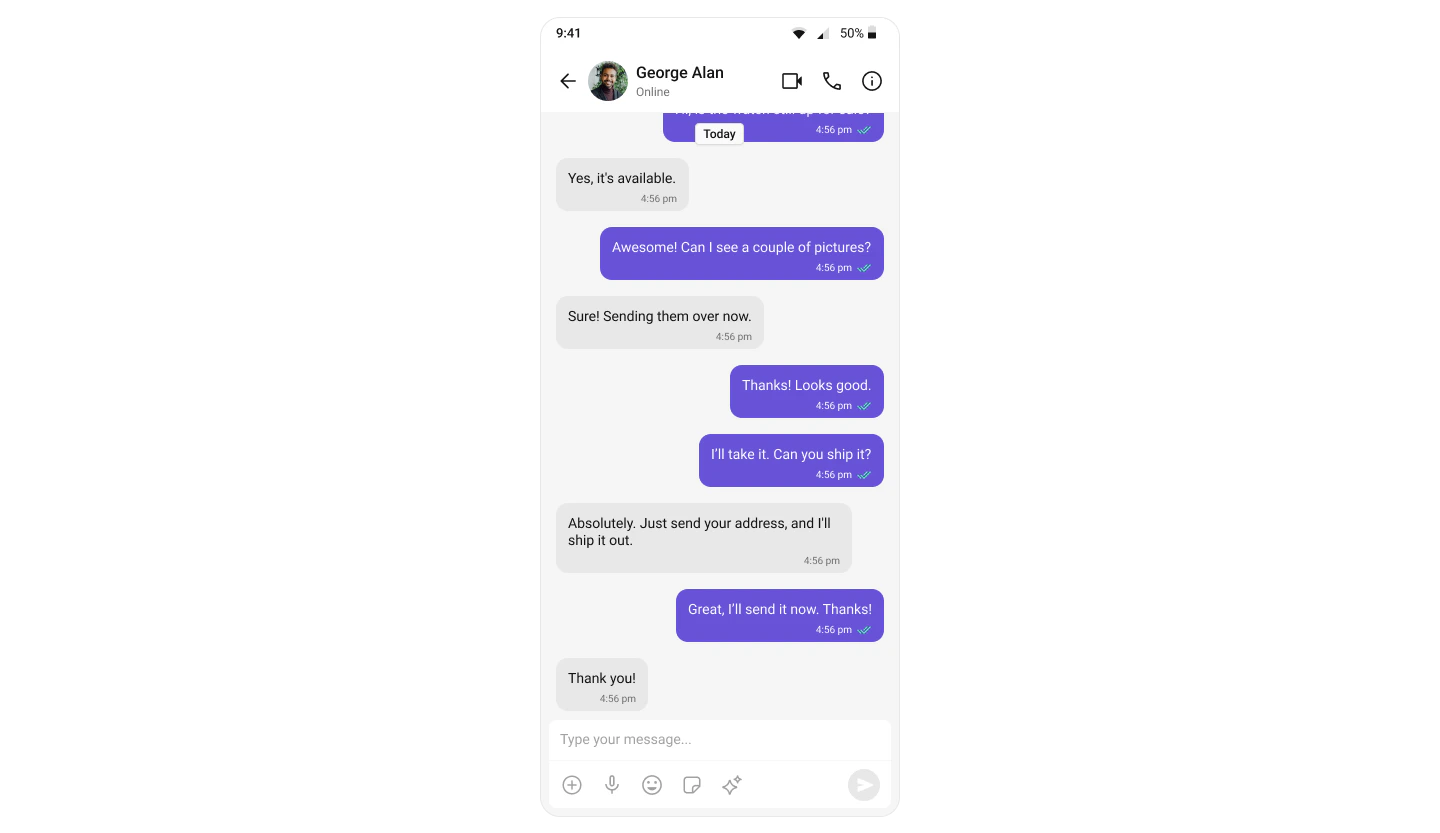
- Message List → CometChatMessageList
- Message Composer → CometChatMessageComposer
- Message Header → CometChatMessageHeader
How It Works
This implementation bypasses the conversation list and opens directly into a chat:- Fetch User/Group – Retrieve the target user or group using their UID/GUID
- Direct Navigation – Launch directly into the message screen
- Focused Experience – No conversation list, just the active chat
- Ideal for Context – Perfect for support tickets, notifications, or deep links
Use Cases
- Customer Support – Direct users to agent chat from help center
- Dating Apps – Open chat after a match
- Notifications – Deep link from push notification to specific chat
- Onboarding – Guide new users through a welcome chat
- Contextual Messaging – Start chat from user profile or product page
Implementation
Step 1: Render the Message View
TheCometChatMessageList widget displays all messages for a specific user or group. Follow the steps below to render this component:
- Dart
main.dart
| Concept | Description |
|---|---|
fetchCometChatUser() | Async function to retrieve user by UID |
FutureBuilder | Widget that builds based on async operation state |
MessagesScreen | Custom widget containing message components |
Full Example: main.dart
- Dart
main.dart
Step 2: Render the Messages Component
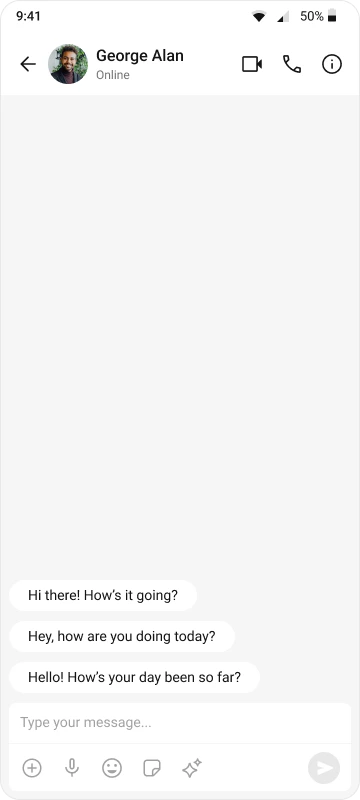
To create a complete messaging view, include the following components inmessages_screen.dart:
- Message Header – Displays conversation title and actions
- Message List – Shows all messages in the conversation
- Message Composer – Input field for sending messages
- Dart
messages_screen.dart
| Component | Purpose | Key Features |
|---|---|---|
CometChatMessageHeader | Shows conversation title, avatar, and actions | User/group info, back button, call buttons |
CometChatMessageList | Displays messages in chronological order | Real-time updates, reactions, replies |
CometChatMessageComposer | Input field for composing messages | Text, media, attachments, emojis |
Step 3: Run the App
Use the following command to run the app on a connected device or emulator:Variations
For Group Chat
To open a group chat instead of a one-to-one chat, fetch a group instead of a user:- Dart
From Route Parameters
Pass user/group ID through navigation:- Dart
From Deep Link
Handle deep links to open specific chats:- Dart
Customization Options
Hide Header or Composer
- Dart
Custom Message Actions
- Dart
Styling
- Dart
- Message List Customization
- Message Header Customization
- Message Composer Customization
- Theming Guide
Common Use Cases
Support Chat from Ticket
Support Chat from Ticket
- Dart
Chat from User Profile
Chat from User Profile
- Dart
Chat from Push Notification
Chat from Push Notification
- Dart
Pre-fill Message
Pre-fill Message
- Dart
Best Practices
Error Handling
Error Handling
Always handle errors when fetching users or groups:
- Dart
Loading States
Loading States
Provide clear loading indicators:
- Dart
Cache User/Group Data
Cache User/Group Data
Cache fetched users to avoid repeated API calls:
- Dart
Next Steps
Message Components
Explore message list, header, and composer features
Conversation List
Add a conversation list for multi-chat support
Theming Guide
Customize colors, fonts, and styles to match your brand
Events & Listeners
Handle real-time events and user interactions