Quick Setup Reference
# Install
flutter pub add cometchat_chat_uikit
flutter pub add cometchat_calls_uikit  # Optional: for calling

# Initialize (run once at app start)
UIKitSettings uiKitSettings = (UIKitSettingsBuilder()
  ..appId = "YOUR_APP_ID"
  ..region = "YOUR_REGION"
  ..authKey = "YOUR_AUTH_KEY"
  ..subscriptionType = CometChatSubscriptionType.allUsers
  ..extensions = CometChatUIKitChatExtensions.getDefaultExtensions()
  ..callingExtension = CometChatCallingExtension()
).build();
await CometChatUIKit.init(uiKitSettings: uiKitSettings);

# Login (after init)
await CometChatUIKit.login("cometchat-uid-1");
Required Credentials: App ID, Region, Auth Key (dev) or Auth Token (prod)
Get from: CometChat Dashboard → Your App → API & Auth Keys
Integration Paths:
The CometChat UI Kit for Flutter streamlines the integration of in-app chat functionality by providing a comprehensive set of prebuilt UI widgets. It offers seamless theming options, including light and dark modes, customizable fonts, colors, and extensive styling capabilities. With built-in support for one-to-one and group conversations, developers can efficiently enable chat features within their applications. Follow this guide to quickly integrate chat functionality using the CometChat Flutter UI Kit.

Prerequisites

Before installing the CometChat UI Kit for Flutter, you must first create a CometChat application via the CometChat Dashboard. The dashboard provides all the essential chat service components, including:
  • User Management
  • Group Chat & Messaging
  • Voice & Video Calling
  • Real-time Notifications
To initialize the UI Kit, you will need the following credentials from your CometChat application:
  1. App ID
  2. Auth Key
  3. Region
Ensure you have these details ready before proceeding with the installation and configuration.

Register & Set Up CometChat

Follow these steps to register on CometChat and set up your development environment.

Step 1: Register on CometChat

To use CometChat UI Kit, you first need to register on the CometChat Dashboard. 🔗 Click here to Sign Up

Step 2: Get Your Application Keys

After registering, create a new app and retrieve your authentication details:
  1. Navigate to the QuickStart or API & Auth Keys section.
  2. Note down the following keys:
    • App ID
    • Auth Key
    • Region
Each CometChat application can be integrated with a single client app. Users within the same application can communicate across multiple platforms, including iOS, Android, and web.

Step 3: Set Up Your Development Environment

Ensure your system meets the following prerequisites before proceeding with integration. System Requirements:
  • Flutter installed on your system (Flutter 3.0 or higher recommended)
  • Android Studio or VS Code with configured Flutter/Dart plugins
  • Xcode & CocoaPods for iOS development
  • An iOS device or simulator with iOS 12.0 or above
  • An Android device or emulator with Android version 5.0 (API level 21) or above

Getting Started

Step 1: Create Flutter Application Project

To get started, create a new Flutter application project:
flutter create my_chat_app
cd my_chat_app

Step 2: Add Dependency

1. Update Pubspec To use this UI Kit in your Flutter project, you’ll need to add the following dependency to the dependencies section of your pubspec.yaml file:
pubspec.yaml
dependencies:
  flutter:
    sdk: flutter
  
  cometchat_chat_uikit: ^5.2.8
  cometchat_calls_uikit: ^5.0.12  # Optional: Include if you're using Audio/Video Calling
Final pubspec.yaml Example:
pubspec.yaml
name: my_chat_app
description: "A Flutter chat application using CometChat UI Kit"

publish_to: 'none'

version: 1.0.0+1

environment:
  sdk: ^3.5.3

dependencies:
  flutter:
    sdk: flutter

  cometchat_chat_uikit: ^5.2.8
  cometchat_calls_uikit: ^5.0.12  # Optional: Include if you're using Audio/Video Calling
  cupertino_icons: ^1.0.8

dev_dependencies:
  flutter_test:
    sdk: flutter

  flutter_lints: ^4.0.0

flutter:
  uses-material-design: true
After updating pubspec.yaml, run:
flutter pub get

2. Android App Setup To ensure compatibility with the CometChat Calling UI Kit and its dependencies, your Flutter project must target a minimum SDK version of 24 or higher. Update the minSdkVersion in your Android project configuration, located at android/app/build.gradle:
build.gradle
android {
    defaultConfig {
        minSdk = 24
        // Other configurations...
    }
}

3. Update iOS Podfile In your Podfile (located at ios/Podfile), update the minimum iOS version your project supports to 12.0:
Podfile
platform :ios, '12.0'
After updating, run:
cd ios
pod install
cd ..

4. Import CometChat UIKit In your Dart code, import the CometChat UIKit package to access its features. Add the following import statement to your main.dart file:
main.dart
import 'package:cometchat_chat_uikit/cometchat_chat_uikit.dart';
import 'package:cometchat_calls_uikit/cometchat_calls_uikit.dart';  // Optional: Include if you're using Audio/Video Calling

Step 3: Initialize UI Kit

Before using any features from the CometChat UI Kit, initialize it with your app credentials.
You must call CometChatUIKit.init() before rendering any UI Kit widgets or calling any SDK methods. Initialization must complete before login.
1. Import & Configure UIKit Settings You can store your app credentials (App ID, Auth Key, Region) in a dedicated configuration file and load them dynamically in your app. Example Configuration File:
cometchat_config.dart
class CometChatConfig {
  static const String appId = "APP_ID";      // Replace with your App ID
  static const String region = "REGION";     // Replace with your App Region
  static const String authKey = "AUTH_KEY";  // Replace with your Auth Key
}
Initialization Code:
main.dart
import 'package:flutter/material.dart';
import 'package:cometchat_chat_uikit/cometchat_chat_uikit.dart';
import 'package:cometchat_calls_uikit/cometchat_calls_uikit.dart';  // Optional
import 'cometchat_config.dart';

void main() {
  runApp(const MyApp());
}

class MyApp extends StatelessWidget {
  const MyApp({super.key});

  @override
  Widget build(BuildContext context) {
    return MaterialApp(
      title: 'CometChat UI Kit',
      theme: ThemeData(
        colorScheme: ColorScheme.fromSeed(seedColor: Colors.deepPurple),
        useMaterial3: true,
      ),
      home: const Home(),
    );
  }
}

class Home extends StatelessWidget {
  const Home({super.key});

  Future<void> _initializeAndLogin() async {
    final settings = UIKitSettingsBuilder()
      ..subscriptionType = CometChatSubscriptionType.allUsers
      ..autoEstablishSocketConnection = true
      ..appId = CometChatConfig.appId
      ..region = CometChatConfig.region
      ..authKey = CometChatConfig.authKey
      ..extensions = CometChatUIKitChatExtensions.getDefaultExtensions()  // Replace with empty array to disable extensions
      ..callingExtension = CometChatCallingExtension();  // Optional: Include if using Audio/Video Calling

    await CometChatUIKit.init(
      uiKitSettings: settings.build(),
      onSuccess: (successMessage) {
        debugPrint('✅ CometChat Initialized');
      },
      onError: (error) {
        debugPrint('❌ CometChat Initialization error: $error');
      },
    );
  }

  @override
  Widget build(BuildContext context) {
    return FutureBuilder<void>(
      future: _initializeAndLogin(),
      builder: (ctx, snap) {
        if (snap.connectionState != ConnectionState.done) {
          return const Scaffold(
            body: SafeArea(
              child: Center(child: CircularProgressIndicator()),
            ),
          );
        }
        if (snap.hasError) {
          return Scaffold(
            body: SafeArea(
              child: Center(
                child: Text(
                  'Error starting app:\n${snap.error}',
                  textAlign: TextAlign.center,
                ),
              ),
            ),
          );
        }
        return const LoginScreen();  // Navigate to your login screen
      },
    );
  }
}
Store your CometChat credentials in a config file to simplify environment management and avoid hardcoding sensitive information.
Auth Key is for development/testing only. In production, generate Auth Tokens on your server using the REST API and pass them to the client. Never expose Auth Keys in production client code.

Step 4: Login to UI Kit

Once the UI Kit is initialized, authenticate your user using the login() method. You’ll receive a User object upon success.
main.dart
CometChatUIKit.login(
  "cometchat-uid-1",  // Replace with a valid UID
  onSuccess: (user) {
    debugPrint('✅ CometChat LoggedIn success: ${user.name}');
    // Navigate to your chat screen
  },
  onError: (error) {
    debugPrint('❌ CometChat LoggedIn error: $error');
  },
);
Test Users: You can test using any of the following pre-generated users:
  • cometchat-uid-1
  • cometchat-uid-2
  • cometchat-uid-3
  • cometchat-uid-4
  • cometchat-uid-5
For more information, refer to the documentation on Init and Login.
Example: Initialization and Login Combined
main.dart
import 'package:flutter/material.dart';
import 'package:cometchat_chat_uikit/cometchat_chat_uikit.dart';
import 'package:cometchat_calls_uikit/cometchat_calls_uikit.dart';
import 'cometchat_config.dart';

void main() => runApp(const MyApp());

class MyApp extends StatelessWidget {
  const MyApp({super.key});

  @override
  Widget build(BuildContext context) {
    return MaterialApp(
      title: 'CometChat UI Kit',
      theme: ThemeData(
        colorScheme: ColorScheme.fromSeed(seedColor: Colors.deepPurple),
        useMaterial3: true,
      ),
      home: const Home(),
    );
  }
}

class Home extends StatelessWidget {
  const Home({super.key});

  Future<void> _initializeAndLogin() async {
    final settings = UIKitSettingsBuilder()
      ..subscriptionType = CometChatSubscriptionType.allUsers
      ..autoEstablishSocketConnection = true
      ..appId = CometChatConfig.appId
      ..region = CometChatConfig.region
      ..authKey = CometChatConfig.authKey
      ..extensions = CometChatUIKitChatExtensions.getDefaultExtensions()
      ..callingExtension = CometChatCallingExtension();

    await CometChatUIKit.init(uiKitSettings: settings.build());
    await CometChatUIKit.login(
      'cometchat-uid-1',
      onSuccess: (_) => debugPrint('✅ Login Successful'),
      onError: (err) => throw Exception('Login Failed: $err'),
    );
  }

  @override
  Widget build(BuildContext context) {
    return FutureBuilder<void>(
      future: _initializeAndLogin(),
      builder: (ctx, snap) {
        if (snap.connectionState != ConnectionState.done) {
          return const Scaffold(
            body: SafeArea(
              child: Center(child: CircularProgressIndicator()),
            ),
          );
        }
        if (snap.hasError) {
          return Scaffold(
            body: SafeArea(
              child: Center(
                child: Text(
                  'Error starting app:\n${snap.error}',
                  textAlign: TextAlign.center,
                ),
              ),
            ),
          );
        }
        return const ConversationsPage();  // Your main chat screen
      },
    );
  }
}
Extract credentials into a separate file (cometchat_config.dart) for better maintainability.

Step 5: Choose a Chat Experience

Integrate a conversation view that suits your application’s UX requirements. Below are the available options:

1️⃣ Conversation List + Message View

Best for: Flutter apps that need a smooth, stack-based navigation between conversations and messages. Highlights:
  • Compact Layout – Uses Navigator.push() for mobile-first navigation
  • One-to-One & Group Chats – Built-in support for private and group conversations
  • Real-Time Messaging – Message list and view auto-refresh with CometChat events
  • State Persistence – Session-aware updates across screens and app restarts
  • Mobile-First UI – Optimized widgets that adapt to different screen sizes
  • Extremely Customizable – Modify styles, themes, and components easily
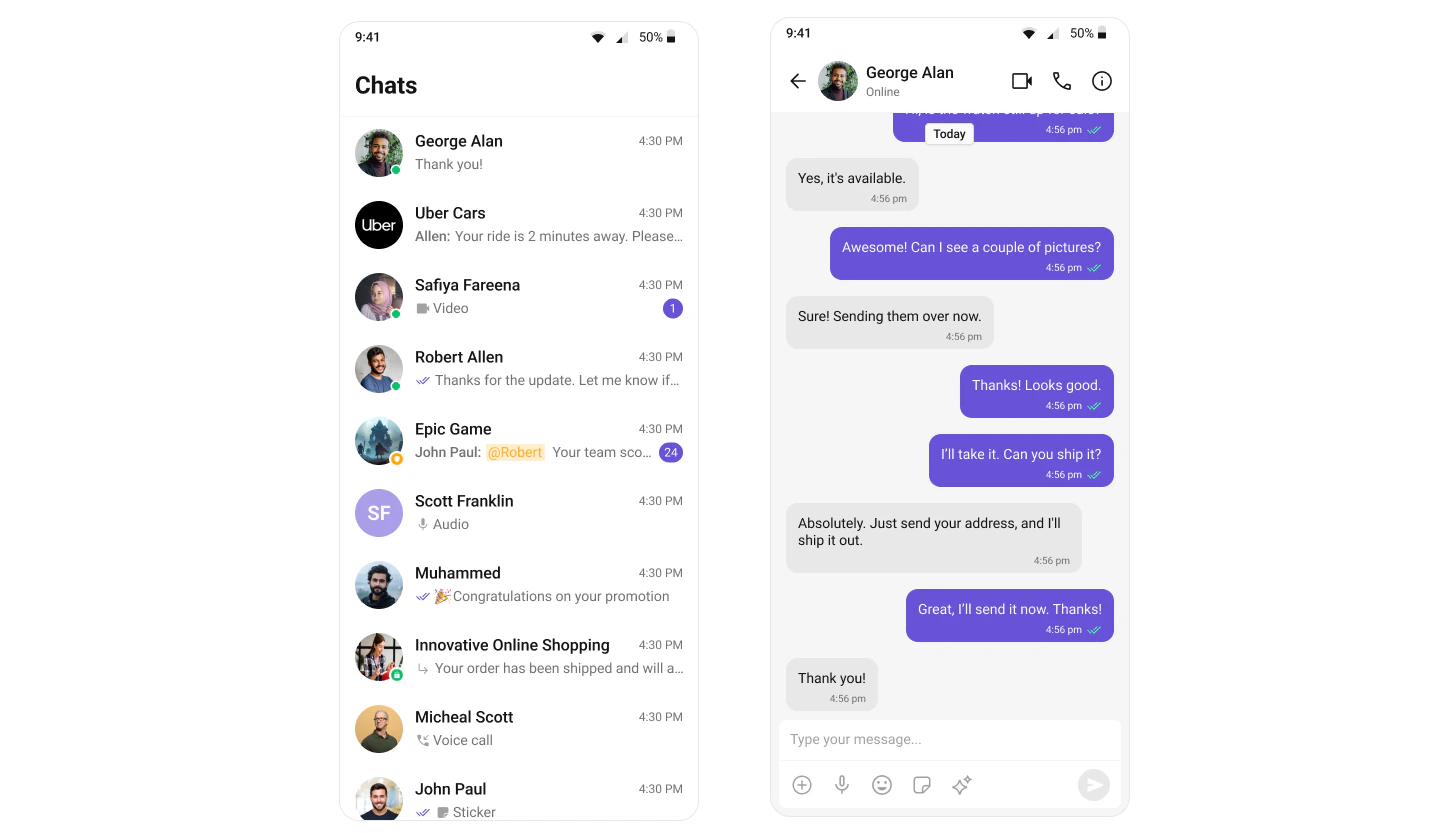
Use When:
  • You want a clean navigation experience for multiple chat sessions
  • Your Flutter app supports both direct and group messaging
  • You prefer a stack-based routing approach using Navigator
Integrate Conversation List + Message View

2️⃣ One-to-One / Group Chat

Best for: When a user lands directly into a chat screen, bypassing the conversation list. Highlights:
  • Single Screen Chat – Use CometChatMessageList widget with preselected user/group
  • No Conversation List – Start with just the message screen
  • Ideal for support & contextual chat – Ticket-based or user-to-agent communication
  • Simplified Routing – Pass user/group as route argument
  • Real-Time Communication – Auto-updates messages and statuses
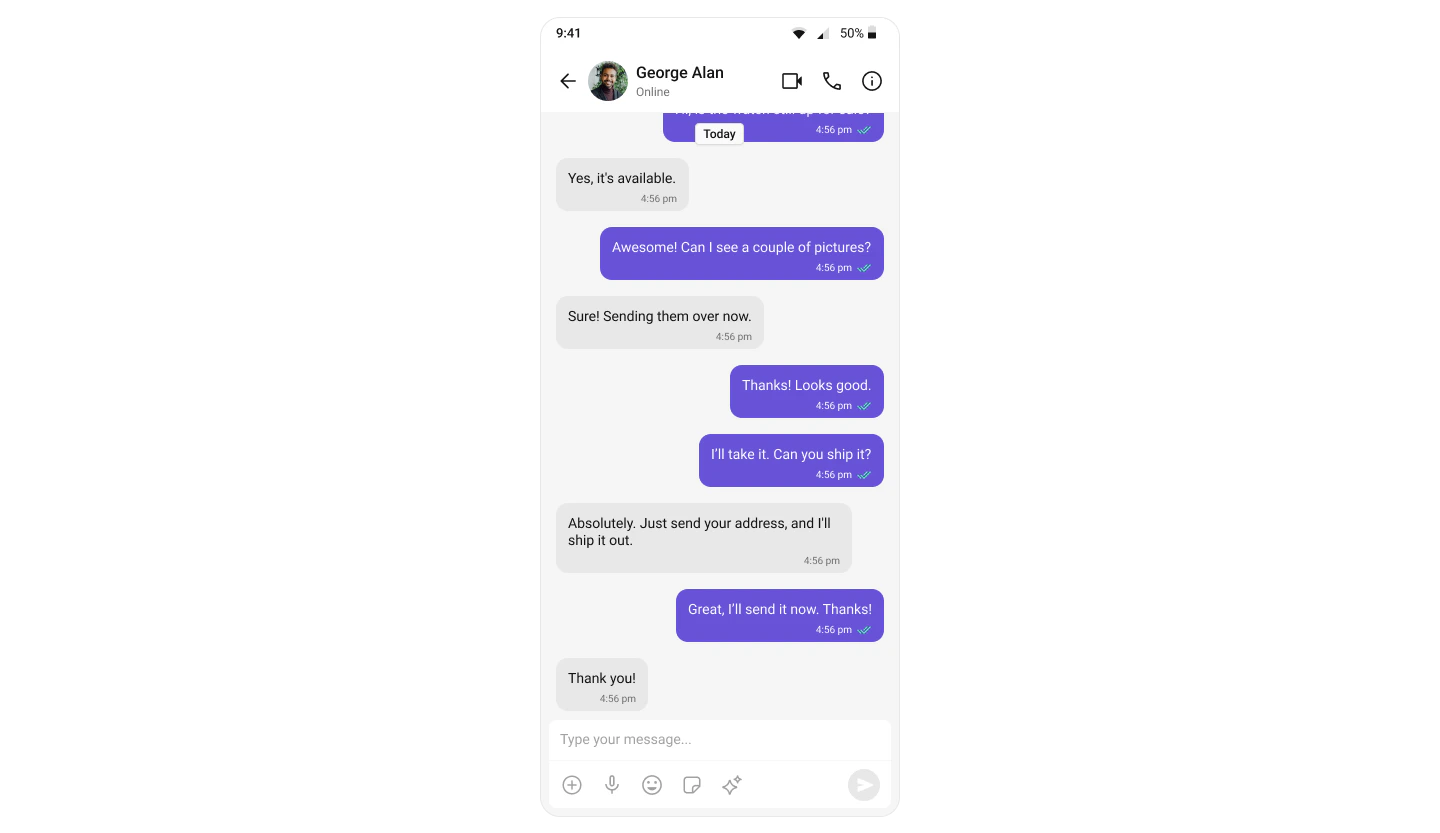
Use When:
  • Your chat starts from a specific user or group ID
  • You want a clean, focused chat interface
  • Use case involves support, onboarding, or one-time messages
Integrate One-to-One / Group Chat

3️⃣ Tab-Based Messaging UI (All-in-One)

Best for: Flutter apps needing a multi-tab experience to access Chat, Users, Calls, and Settings. Highlights:
  • Tab Navigation – Use BottomNavigationBar to switch between core features
  • Independent Screens – Chats, Calls, Users, and Settings in dedicated widgets
  • No Sidebar – True mobile layout using bottom tabs, ideal for smaller devices
  • Scalable – Add new tabs like Profile, Notifications, or Help later
  • Seamless UX – Syncs chat state across tabs with minimal boilerplate
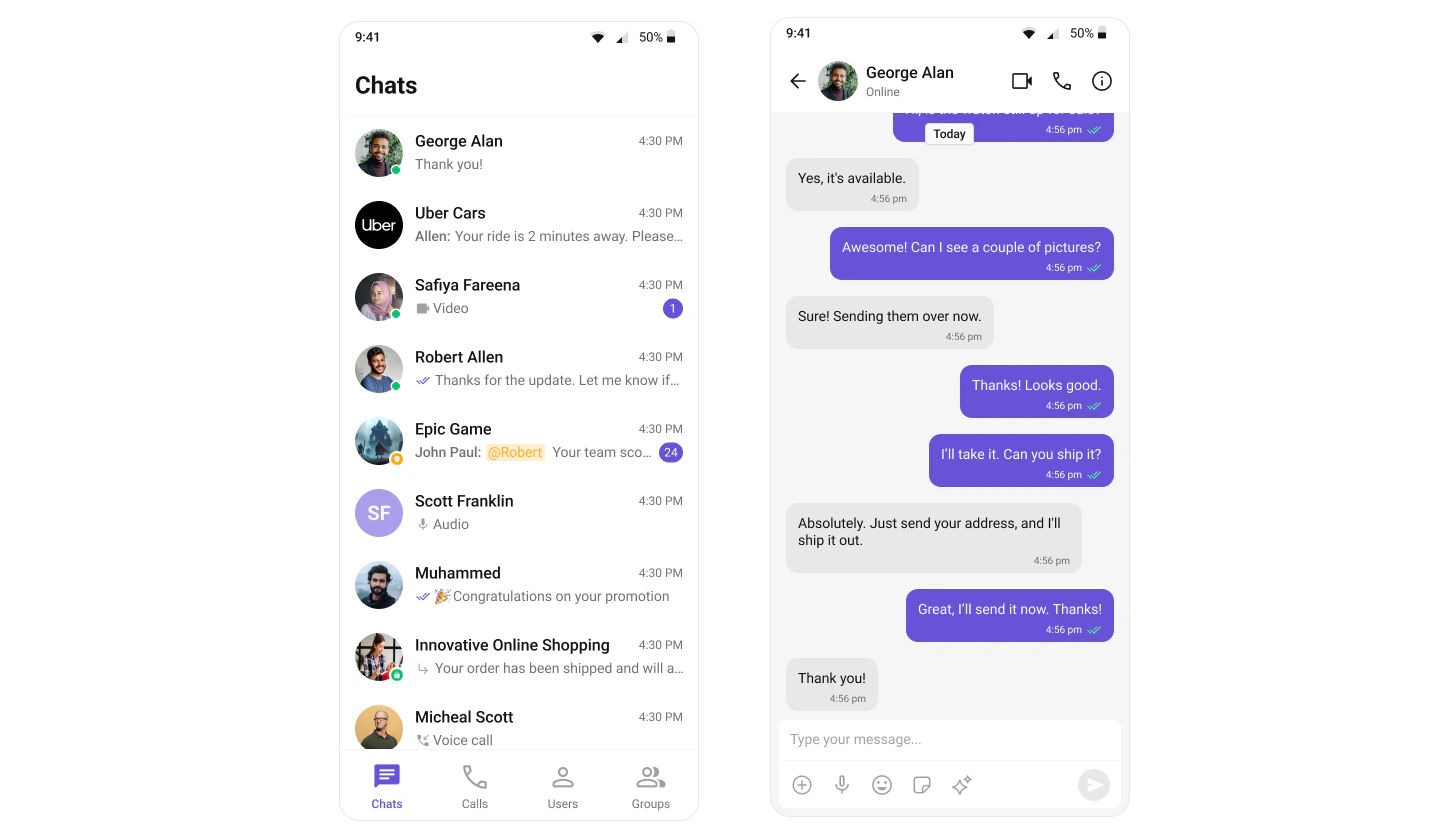
Use When:
  • You need a full-featured chat solution in one UI
  • Your users require structured navigation between modules
  • Use cases like support apps, business messengers, or social platforms
Integrate Tab-Based Chat

Build Your Own Chat Experience

Best for: Developers who need complete control over their chat interface, allowing customization of components, themes, and features to align with their app’s design and functionality. Whether you’re enhancing an existing chat experience or building from scratch, this approach provides the flexibility to tailor every aspect to your needs. Recommended for:
  • Apps that require a fully customized chat experience
  • Developers who want to extend functionalities and modify UI components
  • Businesses integrating chat seamlessly into existing platforms
Key Areas to Explore:
  • Flutter Sample App – Fully functional sample applications to accelerate your development
  • Core Features – Learn about messaging, real-time updates, and other essential capabilities
  • Components – Utilize prebuilt UI elements or customize them to fit your design
  • Themes – Adjust colors, fonts, and styles to match your branding
  • Build Your Own UI – Prefer a custom UI over our UI Kits? Explore our SDKs to create a tailored chat experience

Next Steps

Conversation List + Message

Two-panel layout with conversation list and message view

One-to-One Chat

Direct messaging interface for focused conversations

Tab-Based Chat

Multi-tab experience with chats, calls, users, and groups

Customize Theme

Adjust colors, fonts, and styles to match your brand